Zoom Interview AI Assistant: Live Setup Guide (2026)
Use a Zoom interview AI assistant without audio or screen-share surprises. Compare browser, desktop, and second-device setups, plus a pre-call checklist.

TL;DR: A Zoom interview AI assistant can help before the call with mock practice or during the call with real-time answer prompts. Use the browser when you will not share your screen, a capture-protected desktop client when screen sharing is likely, or a paired phone for physical separation. Test the exact setup before the real interview, and keep every answer in your own words.
It is 8:50 a.m., your Zoom interview starts in ten minutes, and the AI tool that worked in practice is suddenly listening to the wrong microphone. That failure matters more than another hour spent polishing a perfect STAR answer.
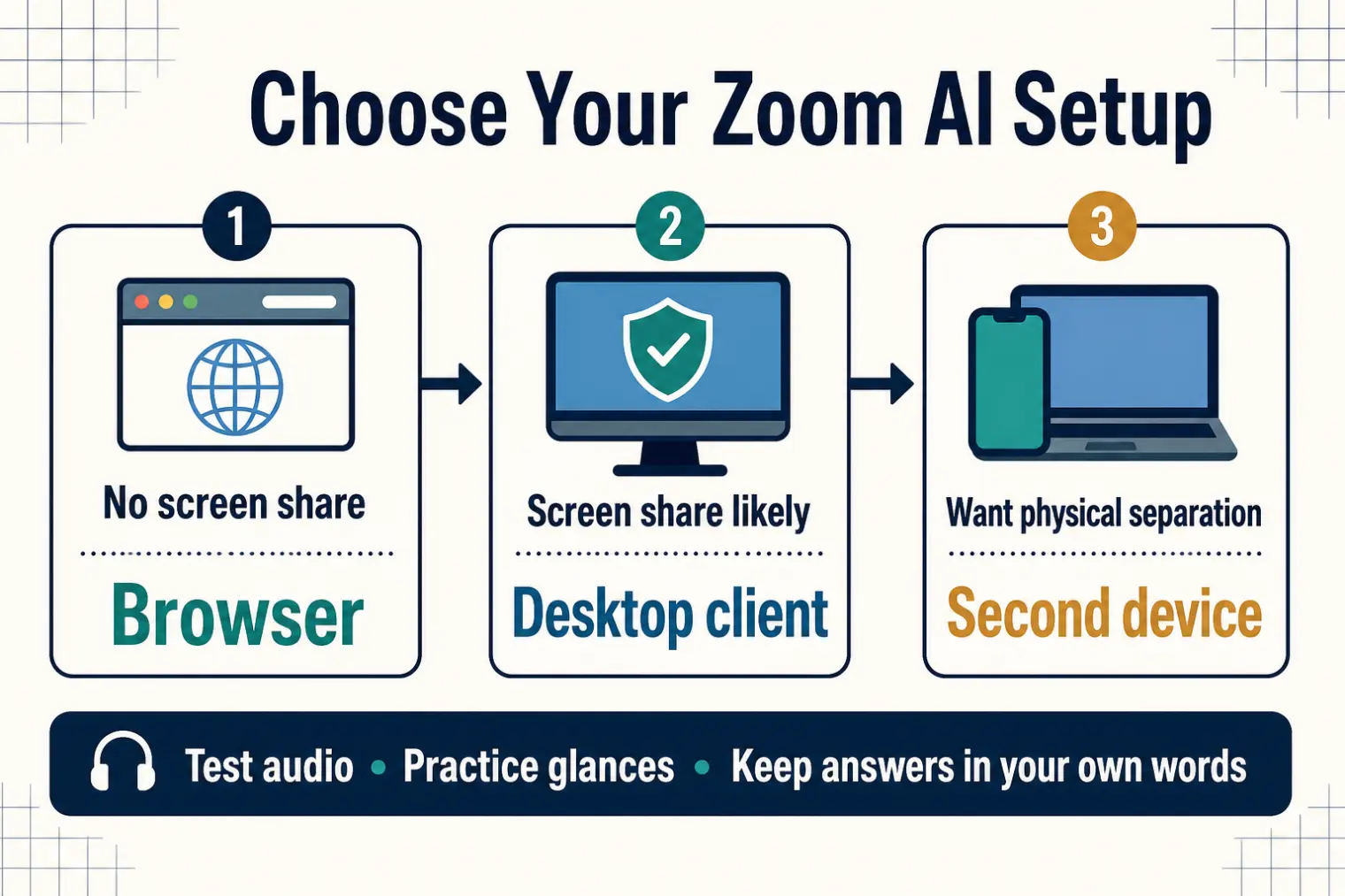
The useful question is not simply whether interview AI "works with Zoom." It is which setup fits the call: browser, desktop client, or a second device. Zoom only transmits the screen or window you deliberately share, but your tool choice still affects audio capture, what can appear in a screen share, and how often your eyes leave the camera.
| Your interview situation | Best starting setup | Main tradeoff |
|---|---|---|
| Practice before the call | Mock interview mode | No live support when you blank |
| Live call, no screen sharing expected | Browser | Fastest setup, but not suitable for sharing your full display |
| Coding, case, or presentation round with screen sharing | Desktop client | Better capture protection, but requires a download and a rehearsal |
| You want the answer view away from the interview computer | Paired phone or tablet | Physical separation, but obvious repeated glances can still distract |
What a Zoom Interview AI Assistant Actually Does
Let's clear up the confusion first.
When people search "Zoom interview AI assistant," they usually need one of three jobs done:
- Preparation: generate role-specific questions, run mock interviews, and tighten answers before Zoom opens.
- Live support: listen to the interviewer and surface a structure or draft while the conversation is happening.
- Presentation control: keep the prompt window out of an ordinary screen share or move the answer view to a second device.
Those are separate capabilities. A strong mock-interview product is not automatically a reliable live copilot, and an answer window staying out of a standard screen share does not make its use impossible to notice.
For live Zoom calls, AceRound AI offers all three setups: a no-install browser session, a desktop client whose answer layer is designed to stay out of common screen-capture paths, and a paired phone or tablet for reading answers away from the meeting screen. The product listens to the interview audio and returns a suggested answer; you still need to choose what is true, relevant, and natural enough to say.
The best setup is the least complicated one that matches the interview. Do not install an overlay for a simple recruiter call if the browser works, and do not rely on a normal browser window if the interviewer has already told you to share the entire display.
The 3 Legitimate Ways to Use AI for Zoom Interview Prep
1. Generate role-specific questions before you get them
Generic behavioral prep misses the point. Every job description is a cheat sheet. An AI assistant can extract the core competencies from a JD and generate the 12–15 most likely questions — behavioral and situational — in about two minutes.
Feed the AI:
- The full job description
- The company's stated values (usually on their careers page)
- Your resume
Ask for: "Generate the 15 most likely interview questions for this role, ranked by probability."
Then work your answers against those questions specifically. You're not guessing anymore — you're targeting.
2. Run mock Zoom interviews with AI feedback
The most underused AI prep technique is the recorded mock interview. Here's the workflow:
- Open AceRound AI and start a practice session
- Set your Zoom background and camera exactly as you'll use it in the real interview
- Answer each question out loud — full answer, not bullet points in your head
- Get AI feedback on structure, clarity, and answer length
The camera-on requirement is important. Answering questions while staring at a screen feels different from answering them out loud to a camera. Most candidates practice the former and are surprised by the latter.
3. STAR answer optimization
Video interview preparation AI can score your STAR answers on multiple dimensions simultaneously: did you quantify the result, did you run too long on context, did you use first-person action language ("I built" vs. "the team built").
This is where AI is useful: it can flag the same structural mistake across several practice answers without waiting for another coaching session. Keep the underlying story yours; the tool should tighten the delivery, not invent the evidence.
Real-Time AI During the Interview: What's Allowed, What's Risky
This deserves a practical answer rather than a blanket promise.
What Zoom can see: the interviewer receives your camera and microphone feeds, plus only the screen, window, or tab you choose to share. Zoom's official screen-sharing guide shows that selection step. A standard Zoom host cannot silently browse your other apps.
What your setup changes: a browser-based assistant is fine for a call with no screen sharing, but it can appear if you share the full display containing it. A native client can exclude its answer layer from common capture paths. A paired phone keeps the answer view off the interview computer altogether.
None of those setups guarantees that AI use is undetectable. Managed devices, separate proctoring software, interview rules, repeated off-camera glances, long pauses, and answers you cannot defend are different layers of risk. The Zoom screen-sharing guide for candidates separates what the meeting software can see from what a person can notice.
Some employers explicitly allow reference material or AI in technical screens; others prohibit outside assistance. Check the invitation and assessment rules. If they are unclear, ask the recruiter before the call rather than guessing.
If live support fits the rules you were given, AceRound's real-time interview copilot lets you choose the browser, desktop, or paired-device setup before the session starts. Use the free allowance to rehearse the same microphone, Zoom share mode, and answer-view position you will use in the real round.
Zoom-Specific Setup That Actually Matters
Most setup advice is vague. Here's what specifically tanks candidates on Zoom.
The eye contact problem. You naturally look at the interviewer's face on screen. But their camera is at the top of your monitor. Looking at their face means you appear to be looking down on their end — the same body language as someone avoiding eye contact. Fix: put a small sticky note dot next to your camera lens. Train yourself to speak to the dot, not the face.
Audio matters more than camera polish. Interviewers can work with an average webcam; clipped questions break the conversation and starve the AI assistant of context. Open Zoom's official test meeting, confirm the input and output devices, then run one practice question while the assistant is listening.
The background tells a story. Virtual backgrounds work if they render cleanly with your camera and lighting. They don't if you get a halo artifact or your hands disappear. A real, clean background — a bookshelf, a plain wall — is safer. Interviewers aren't judging your apartment; they're judging whether you're distracted.
Internet connection: Use a wired connection if it is available. On Wi-Fi, sit near the router and close streaming apps before the call. A speed test alone is not enough; a five-minute Zoom test catches unstable audio and device switching that a download number will miss.
The self-view distraction. Multiple candidates report that seeing themselves on screen during the interview pulls focus. Hide self-view (Zoom has a setting for this). You know what you look like. Spending mental energy monitoring your own image costs you on the questions.
How AceRound AI Fits Into Zoom Interview Prep
AceRound AI supports both preparation and real-time Zoom interviews. Pick the mode based on what the call requires:
- Add your resume and target job so suggestions use your actual background.
- Run a mock session and answer likely questions out loud before interview day.
- For a live call without screen sharing, start a browser interview session.
- If full-screen sharing or recording is likely, use the desktop client and verify the answer layer with a test share.
- If you prefer physical separation, pair a phone or tablet and keep Zoom on the computer.
AceRound listens for the interviewer's question and surfaces a suggested structure or draft in real time. Treat that output as a prompt, not a script. If a result, project detail, or technical claim is not yours, do not say it. Follow-up questions expose borrowed specifics much faster than any meeting-software detector.
The setup test is simple: start a practice Zoom meeting, ask a friend to share a realistic question, confirm the assistant hears the full sentence, and answer while looking mainly at the camera. If any part feels awkward, fix it before the interview rather than improvising live.
Online Interview AI Tools: A Realistic Comparison
Choose a tool by the session you need to run, not by the longest feature list.
| Tool | Best fit for a Zoom candidate | Check before relying on it |
|---|---|---|
| AceRound AI | Mock practice plus live browser, desktop, and paired-device options | Test the exact audio source and share mode |
| Final Round AI | A broad prep and live-copilot bundle | Current live-session allowance and renewal terms |
| Yoodli | Practicing pace, filler words, and camera delivery | Whether you need live answer prompts rather than speaking feedback |
| Google Interview Warmup | Free, self-guided answer practice | Limited role context and no live Zoom support |
The honest framing: no AI tool replaces domain knowledge or genuine experience. What AI does well is give you structured, high-repetition practice at scale — the kind that used to require paying a coach by the hour.
FAQ
Can employers see if I'm using an AI assistant during a Zoom interview?
Zoom does not show the interviewer your other apps unless you share the screen or window containing them. A capture-protected desktop client can keep its answer layer out of common screen shares, but that is not a guarantee of undetectability. Follow-up answers, eye movement, managed devices, and separate proctoring tools are different risks.
Is it cheating to use AI to prepare for a Zoom interview?
No. Using AI to practice answers, get feedback, and simulate interview conditions is the same category as hiring a coach or doing mock interviews with a friend. Live assistance is a separate decision governed by the employer's rules; the AI interview ethics guide covers that line in more detail.
What's the best way to practice for a Zoom interview using AI?
Use the real job description to generate likely questions, then answer five to seven of them out loud with your camera on. Before the real call, run one practice session with the same Zoom audio devices and the same browser, desktop, or paired-device mode you plan to use.
How do I stop being so nervous on Zoom video calls?
The main driver of Zoom interview anxiety is unfamiliarity with the format. More mock interviews on Zoom specifically reduces it — not generic mental prep. Also: hide your self-view, test your setup the day before (not the morning of), and do a 5-minute audio/video check with someone you trust.
Does Zoom record interviews without telling candidates?
Zoom notifies participants when recording is active — a banner and audio alert appear. Employers can record with the host's permission. If you're unsure, ask the recruiter before the interview whether it will be recorded and how the recording is used.
Can I use AceRound AI with Zoom?
Yes. AceRound runs separately from Zoom and can listen during a live interview. Use the browser for calls without screen sharing, the desktop client when screen sharing is likely, or pair a phone or tablet for a separate answer display. Test the chosen mode in a Zoom practice call first.
Author · Alex Chen. Career consultant and former tech recruiter. Spent 5 years on the hiring side before switching to help candidates instead. Writes about real interview dynamics, not textbook advice.
Related Articles
OpenAI's AI Interview Policy: Banned, Required, or Team-Dependent
OpenAI sells AI coding agents, then bans most candidates from using one. Here's the round-by-round policy, including the new agentic round that flips it.
Does Harver Detect Cheating? What Its Proctoring Actually Checks
Does Harver detect cheating on its pre-employment assessments? A candidate look at Harver's Proctoring add-on, what gets logged after a flag, and what happens next.
Micro1's Zara AI Interview: What It Actually Tests (And Why Timing Gets Flagged)
Micro1's AI interviewer Zara has run 300,000+ interviews for remote roles. Here's why it flags response latency as a cheating signal, and what that means for AI prep.